CS2 Demo Ticks: Tick to Time, and demo_gototick
A demo tick over the demo's tick rate is a timestamp. What catches people is which tick rate, which counter the number came from, and where demo_gototick lands.
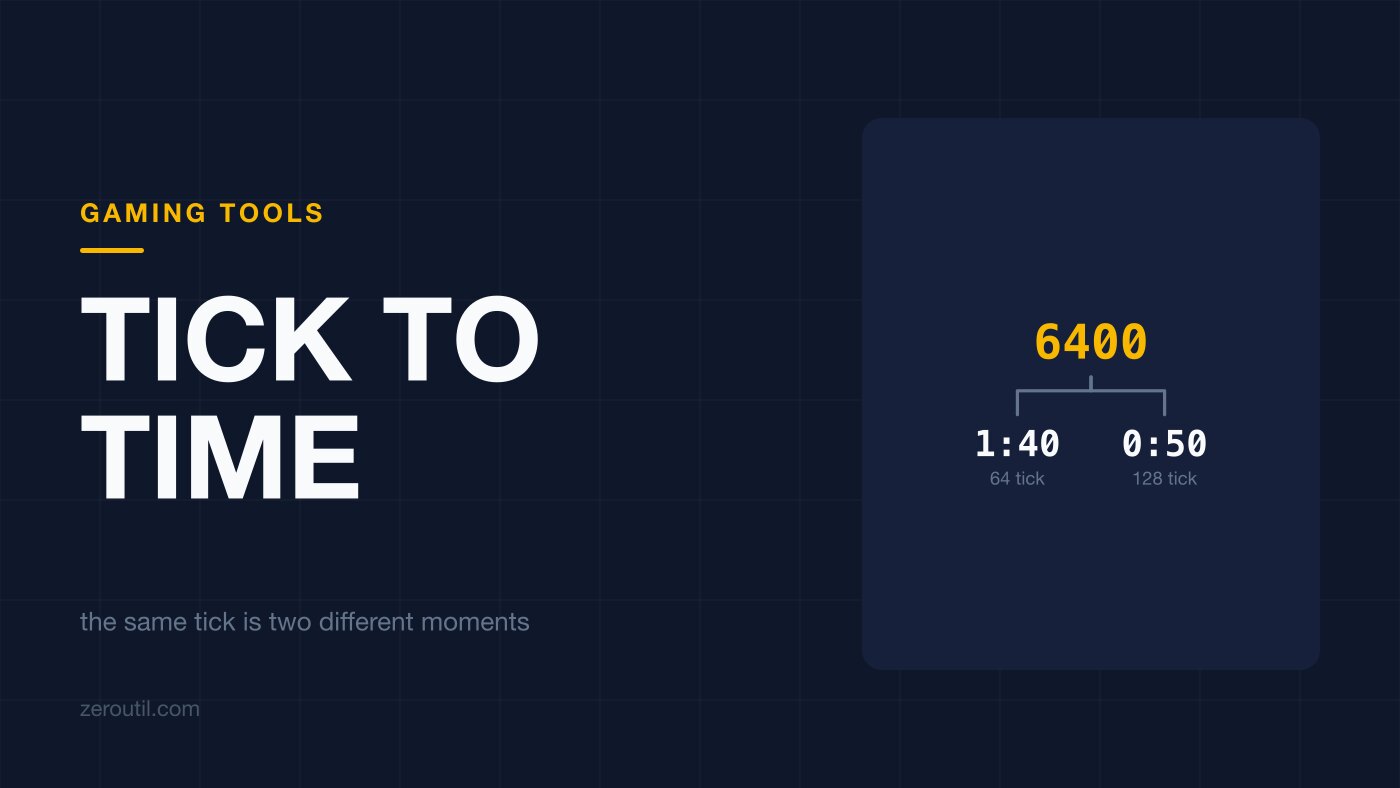
Someone sends you a tick. It is a number like 61440, the demo it belongs to runs forty minutes, and on its own the number does not tell you where in those forty minutes to look.
The arithmetic is one division. Everything that wastes time sits either side of it.
The division, and the number you have to bring to it
A tick is a server simulation step, so the time it represents is the tick divided by how many of those steps happen per second.
seconds = tick / tickrateTick 6400 on a 64-tick demo is 100 seconds, which is 1:40 into the file. The same tick on a 128-tick demo is 50 seconds. Nothing in the number itself tells you which.
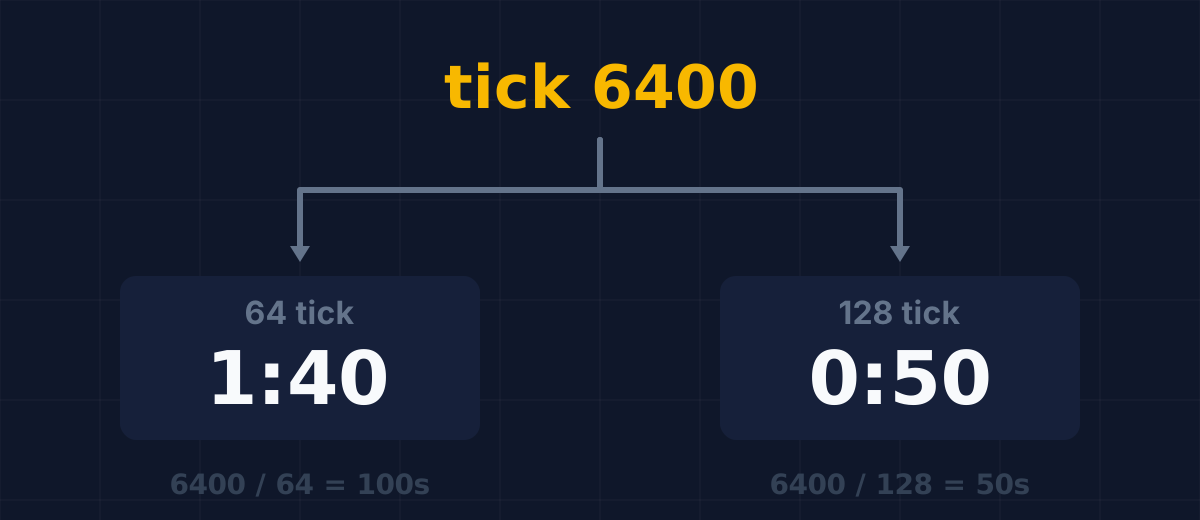
That is the whole reason a bare tick is a poor thing to paste into a chat window. It is precise and it is incomplete, and the missing half is the one people assume.
The tick rate belongs to the demo, not to the game
Valve's official matchmaking and Premier servers run at 64 tick, so most demos downloaded from the game itself are 64. CS:GO-era demos and a number of third-party and league servers are 128. Both kinds are still sitting in people's folders and still being linked in threads.
This is why demo parsers do not hardcode it. demoinfocs reads the tick rate out of the CSVCMsg_ServerInfo message and only falls back to the demo header when that is unavailable.2 The rate is a fact about the recording, recovered from the recording.
If you are working from a file rather than a forum post, read it rather than guess. If you are working from a forum post, ask which it was. The tick calculator makes tick rate a visible input for exactly this reason: there is no correct default, only a common one.
A tick and a frame are not the same counter
This is the trap worth knowing about, because both numbers are large, both are called ticks in casual use, and neither looks wrong.
The server tick is the simulation step the match ran on. It is what demo_gototick takes and what event data is stamped with.
The frame is the index of a recorded frame inside the demo file. Parser documentation calls it the "demo-tick", and demoinfocs spells out why the distinction exists: the frame counter is separate precisely because demos often have a different tick rate than the game.2
So a number lifted out of a parser is only useful once you know which of the two it is. In the CS2 demo format the server tick is exposed as net_tick, surfaced by parsers as a per-tick game_time field.3 If the number came from a frame index instead, converting it with the server tick rate produces a timestamp that is confidently wrong, and wrong by a different amount in every demo.
demo_gototick, and the argument nobody expects
Open the console while a demo is playing and the jump is one line:
demo_gototick 6400Valve documents the full form as demo_gototick <tick> [relative] [pause].1 The relative argument, set to 1, makes the number an offset from where you already are. The pause argument, set to 1, stops playback the moment it arrives.
The catch is positional. To jump to an absolute tick and pause, you cannot skip the middle argument:
demo_gototick 6400 0 1That 0 is not decoration. It is the relative flag being explicitly turned off so the pause flag lands in the third slot rather than the second. Write demo_gototick 6400 1 expecting a pause and you have instead asked for a jump 6400 ticks forward from the current position, which in a long demo is a plausible-looking result somewhere else entirely.
The same page documents demo_timescale <scale> for playback speed, which pairs well with pausing on arrival: land stopped, then run at a fraction of speed through the part you care about.1
Jump early on purpose
The tick attached to an event is the tick the event resolved on. Arrive exactly there and you are watching the aftermath: the kill has happened, the player is already dead, and whatever you wanted to understand about the approach is behind you.
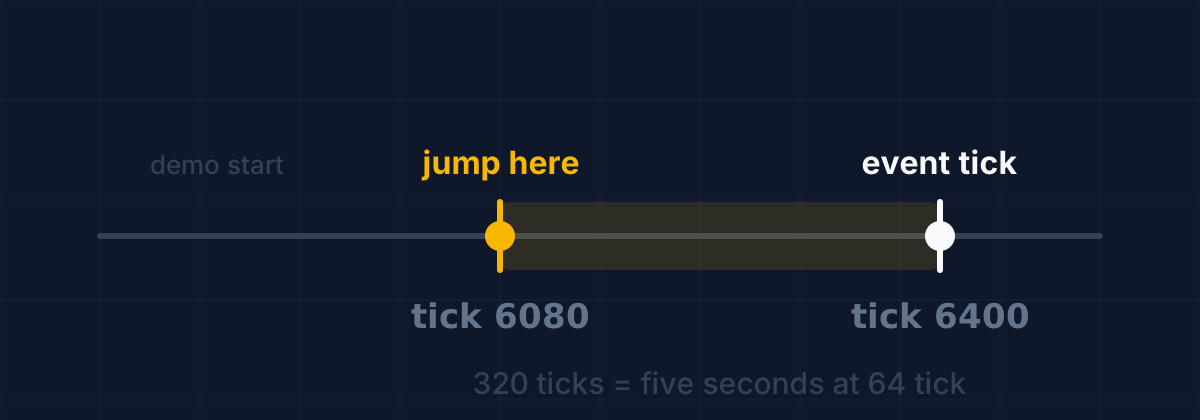
So subtract first. Five seconds is usually enough to see the rotation, the utility and the duel that produced the number. At 64 tick that is 320 ticks; at 128 it is 640. The lead-in is the second place where the tick rate matters, and a wrong one is harder to catch here, because a jump that lands five seconds off still lands somewhere plausible.
One edge worth handling: subtracting a lead-in from a tick near the start of the demo can produce a negative number. There is no tick before zero, so clamp it there rather than pasting a negative into the console.
Round-relative time is the number worth writing down
Absolute ticks are fine for a machine and poor for a person. "Tick 61,440" survives being read back by nobody. "Nine seconds into round 14" survives being read back by everyone, including you, in a week.
CS2 demos carry what you need for the conversion: parsers expose a round start time alongside the round events, surfaced from m_fRoundStartTime.3 Subtract the round's start tick from your target tick, divide by the tick rate, and the result is a position inside the round rather than inside the file.
Keep both. The absolute tick is what you paste into the console; the round-relative time is what you write in the note. The calculator prints the second one as soon as you give it a round start tick, for the same reason.
The shape of it
Three numbers and one command, and only one of them is arithmetic.
- Establish the tick rate from the demo, not from habit.
- Confirm the tick is a server tick and not a frame index.
- Subtract a lead-in, clamped at zero.
demo_gototick <tick> 0 1, with the zero.
Once that is a habit, demo review stops involving the scrub bar. If you are reviewing comms as well as positioning, the voice comms calculator covers the other half of the setup, and the FACEIT demo guide covers which demos carry voice at all.
Sources
Every number in this article traces to a source below. Where a claim could not be sourced, it was cut rather than softened.
- Peer-reviewedValve Developer Community
The demo_gototick <tick> [relative] [pause] signature and the meaning of each argument, the existence of demo_timescale, and that demo files use timestamps called ticks to mark single frames within the playback.
- Peer-reviewedmarkus-wa
That the current frame is called the demo-tick because demos often have a different tick-rate than the game, and that the parser reads tick rate from CSVCMsg_ServerInfo with the demo header only as a fallback.
- Peer-reviewedLaihoE
That CS2 demos are tick-indexed and expose game_time as net_tick and round_start_time as m_fRoundStartTime, alongside sub-tick fields carried on user commands.
Topics
- CS2
- Demos
- Console Commands
- Ticks
Tools mentioned in this article
- CS2 Demo Tick Calculator - Convert a CS2 demo tick to a timestamp and back, and copy the demo_gototick command that jumps there.
- CS2 Voice Comms Calculator - Hear specific players in a CS2 or FACEIT demo - upload it to auto-fill players and get the tv_listen_voice_indices commands.
- SteamID Converter - Convert between SteamID64, STEAM_0:Y:Z, SteamID3 [U:1:W], account ID and profile URL.
Get new tools by email
New tools and the occasional deep-dive, about once a month. No spam, no sharing your address, unsubscribe in one click.